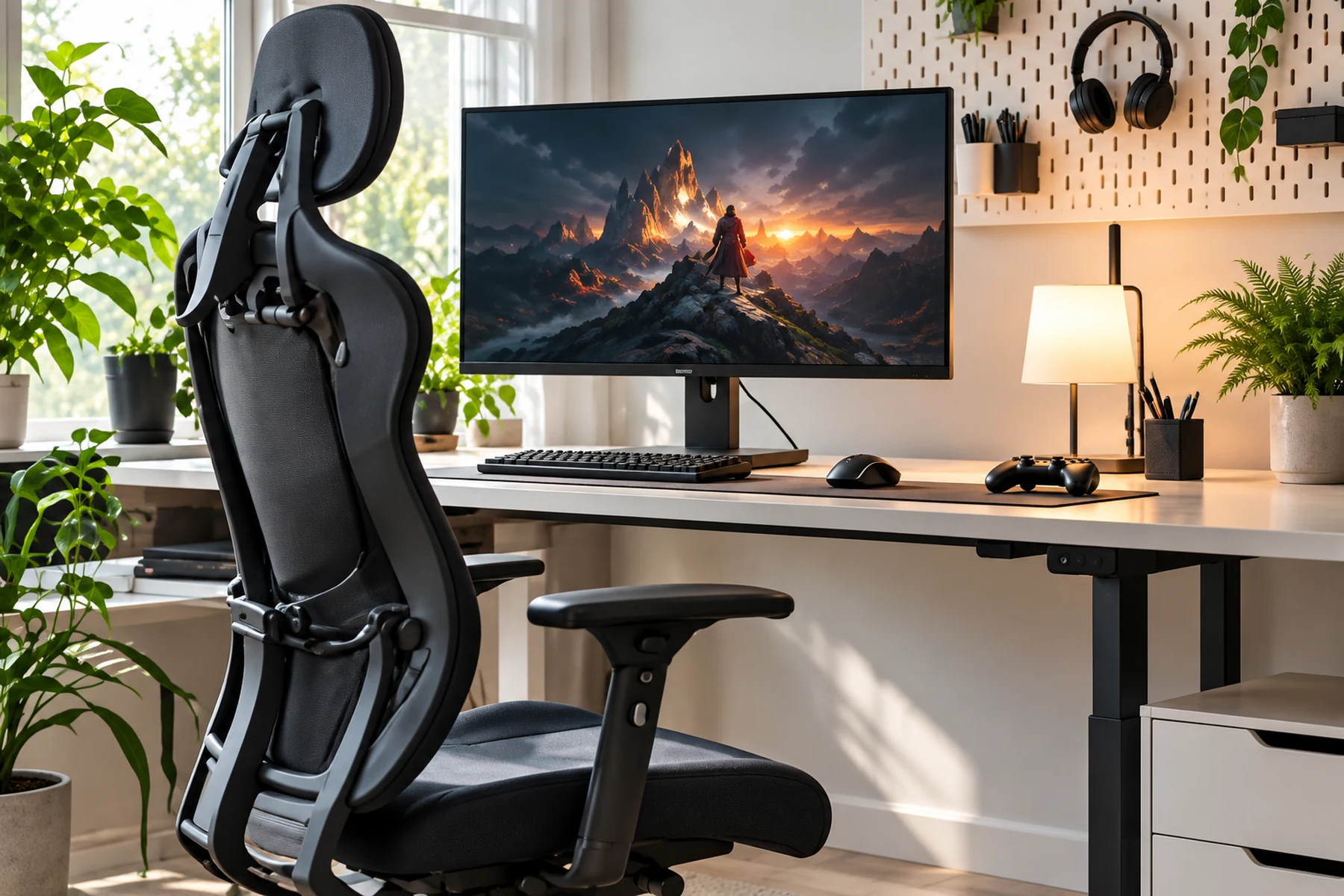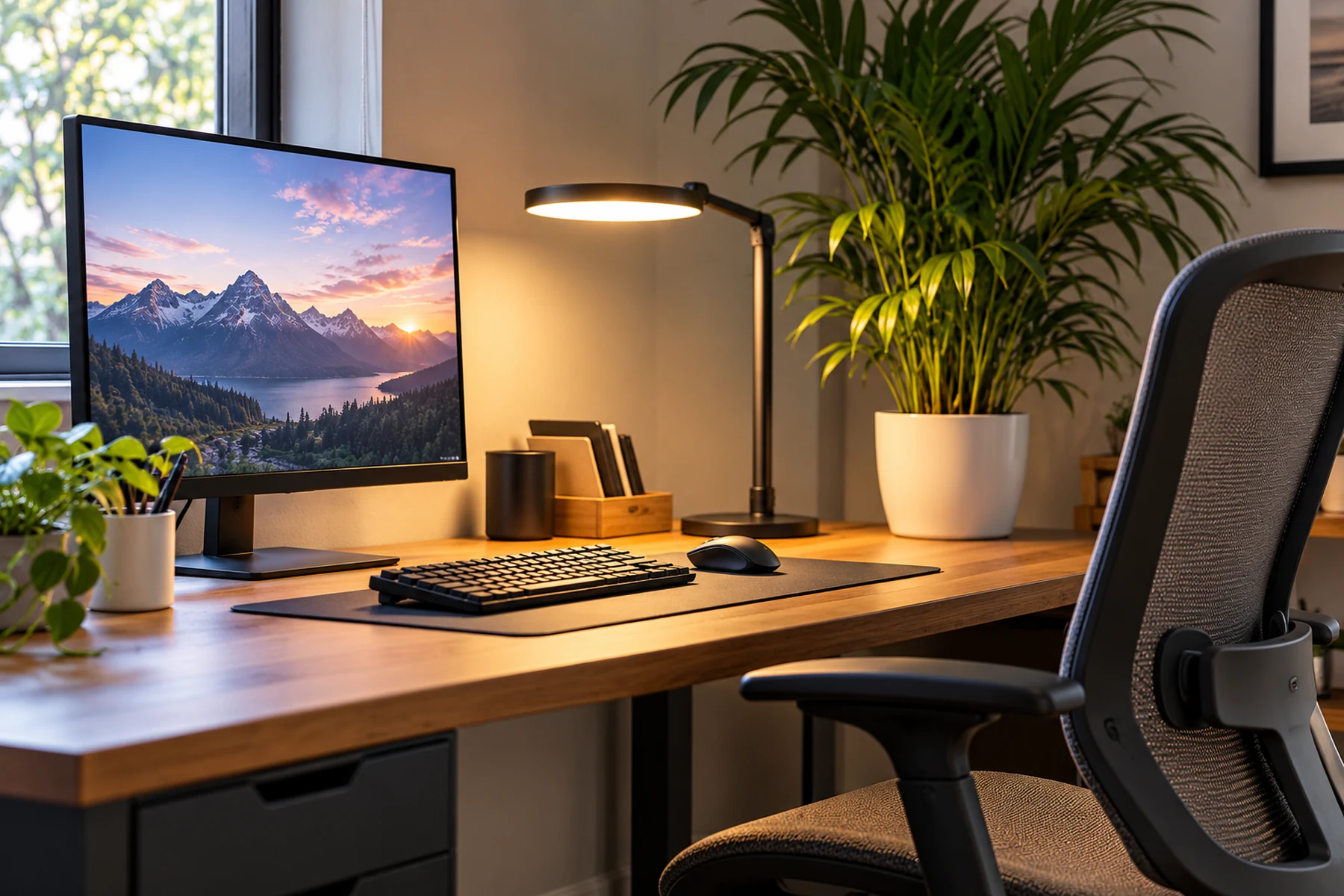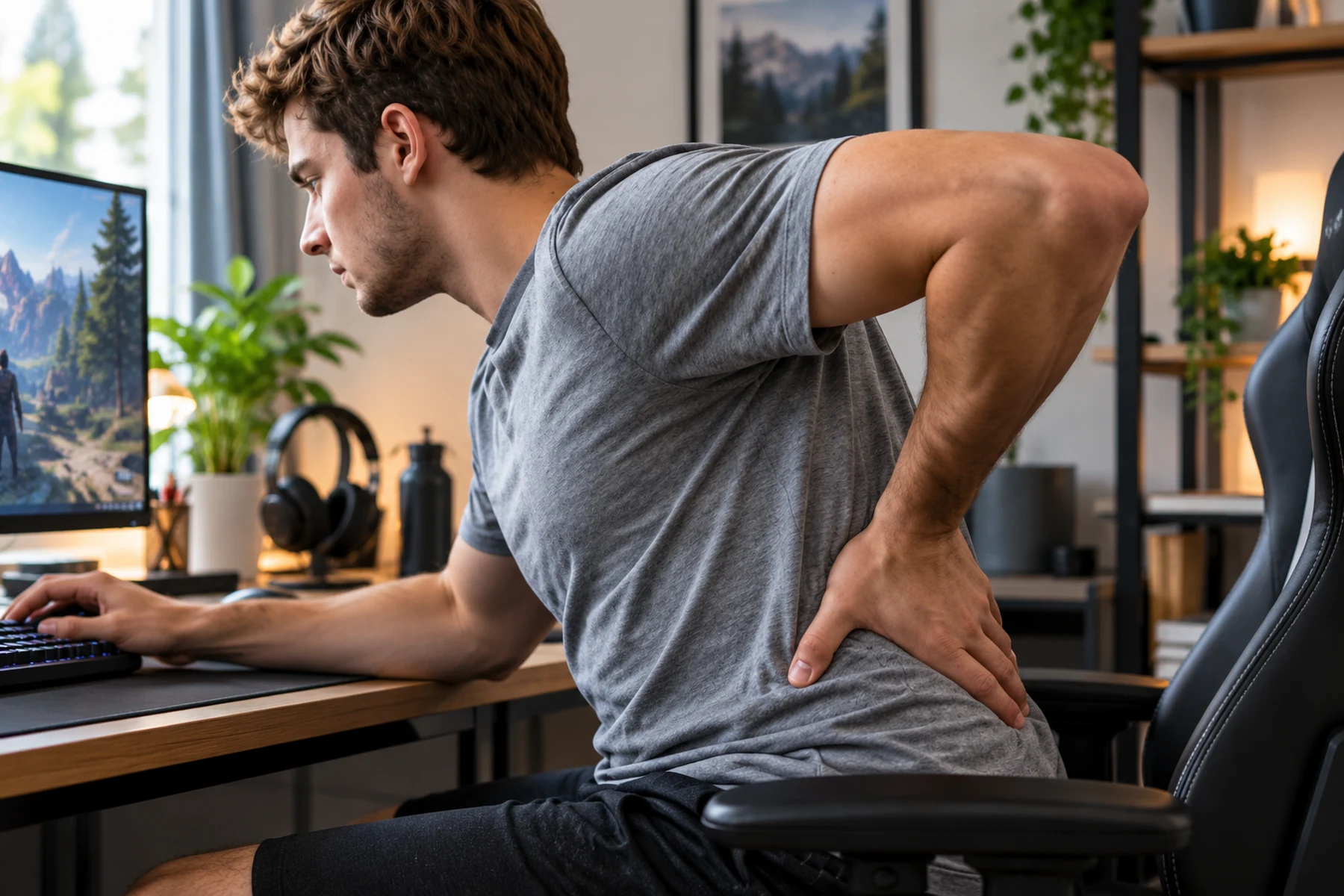
Pain Is a Signal, Not a Posture Score
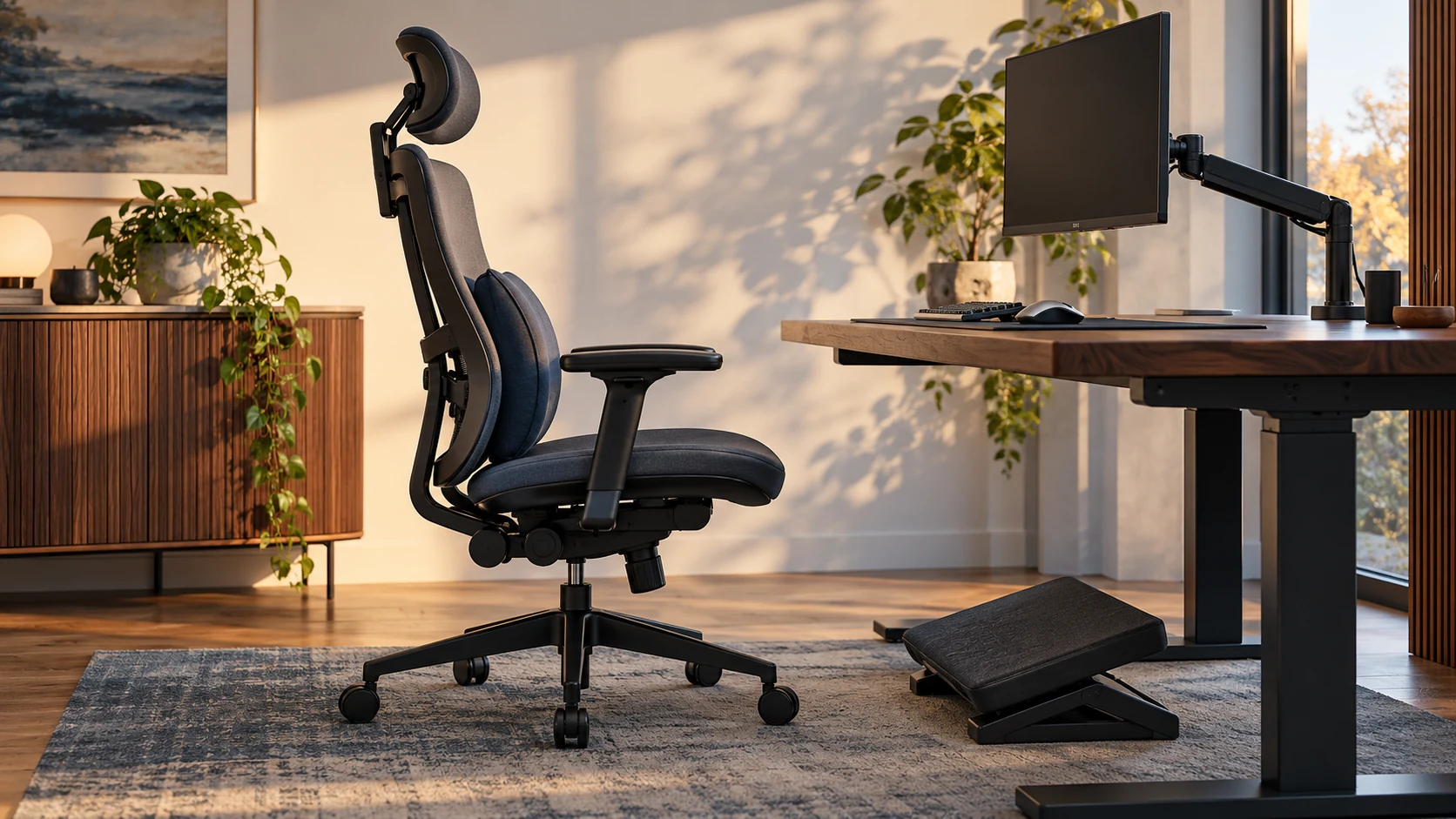
Back and neck pain during grinds rarely stems from failing to maintain a 90-degree angle. Discomfort originates from locking your body into a static posture for hours. The human musculoskeletal system requires movement. Forcing an inflexible posture accelerates fatigue in stabilizing muscles. Effective ergonomic management in gaming means eliminating workstation mismatches. Support the natural curvature of your spine and introduce dynamic postural changes.
Do not freeze yourself in one position. When back or cervical pain hits, investigate the mismatch between your chair height, desk elevation, and screen placement. Eliminate reach strain immediately. Alternate between upright focus positions and slightly reclined defensive positions.
Why One Held Position Starts to Hurt
Prolonged sitting produces discomfort primarily through sustained isometric contraction of stabilizing muscle groups. When muscles remain contracted to hold an immobile posture, intramuscular pressure spikes. This compresses local capillaries. It chokes off microvascular blood perfusion. This localized tissue ischemia generates metabolic waste products like lactic acid. The buildup irritates nociceptors, producing the deep ache players frequently ignore.
Static Muscular Loading and Tissue Ischemia
Even an expensive ergonomic setup becomes fatiguing if maintained without movement. Spinal erectors, upper trapezius fibers, and deep cervical flexors fail under continuous static loading. Without frequent position changes, blood flow remains restricted. Muscles enter a state of progressive stiffness. Your body involuntarily engages compensatory slumping to give those exhausted muscles a break.
The Concept of Dynamic Postural Variation
Ergonomic science prioritizes dynamic sitting above static perfection. Shift between multiple biomechanically sound positions throughout a long gaming session. Shifting between an upright posture and a supported reclined posture of 100 to 115 degrees changes everything. This constant variation transfers the mechanical stress across entirely different vertebral segments.
Let the Pain Location Guide the First Adjustment
Discomfort patterns almost always correspond to specific mechanical mismatches in your setup.
| Pain Location | Probable Physical Mismatch | Biomechanical Consequence | Immediate Workstation Correction |
|---|---|---|---|
| Cervical Spine / Neck | Monitor placed too low or distant | Forward head carriage, cervical shear | Raise monitor; bring screen closer |
| Upper Trapezius / Shoulder | Desk surface or armrests too high | Chronic scapular shrugging | Lower desk or raise chair with footrest |
| Lower Back (Lumbar) | Unsupported lumbar lordosis / deep seat | Posterior pelvic tilt, disc flexion | Add firm lumbar support; adjust seat depth |
| Thoracic Spine / Mid-Back | Excessive reach to mouse and keyboard | Scapular protraction, kyphotic slump | Pull primary peripherals closer to torso |
Start With the Screen, Not the Chair
Visual targets absolutely dictate spinal posture. The musculoskeletal system will reflexively contort head, neck, and torso alignment to position the retinas in perfect view of the screen.
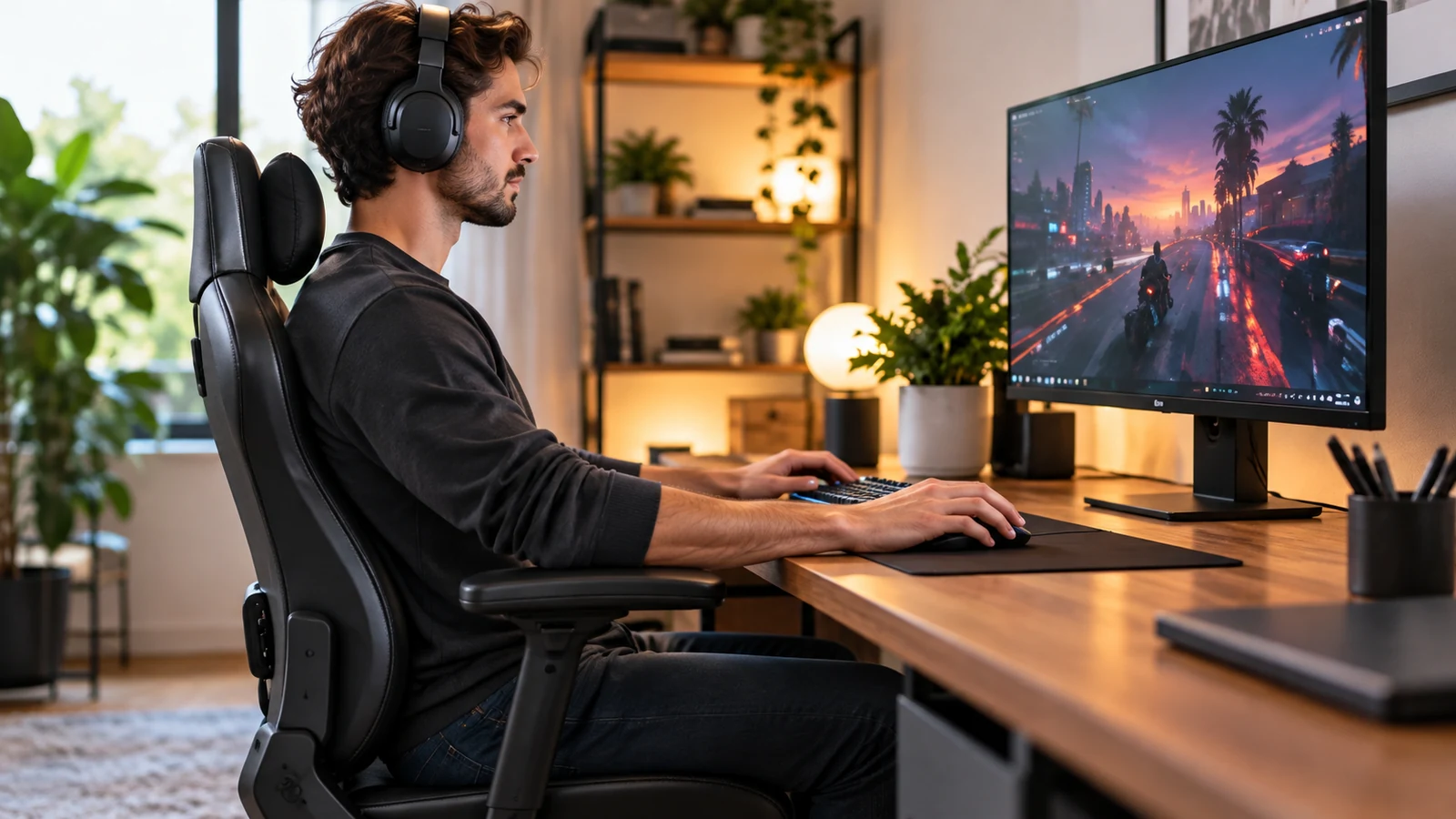
| Display Parameter | Recommended Standard | Common Competitive Error | Physical Manifestation |
|---|---|---|---|
| Vertical Height | Top third of screen at eye level | Screen set flat on low desk | Cervical flexion, upper back rounding |
| Viewing Distance | 50 to 75 cm (arm length) | Screen pushed too far back | Forward head protrusion, squinting |
| Tilt Angle | 10 to 20 degrees backward tilt | Vertical or downward angle | Increased glare, neck downward tilt |
| Multi-Monitor Offset | Primary display directly centered | Dual monitors split down middle | Asymmetrical neck rotation fatigue |
Dual monitor setups frequently ruin neck health. When two monitors sit side-by-side with the bezel seam planted directly in front of the nose, players inevitably keep their neck rotated sharply toward one side for hours. This creates an asymmetrical tension imbalance. The primary gaming screen must always sit dead center in front of your body's midline.
Then Stabilize the Pelvis
An ergonomic chair acts as a highly adjustable stabilization platform built to maintain neutral skeletal geometry against gravity.
| Chair Dimension | Target Adjustment Criteria | Biomechanical Risk of Error |
|---|---|---|
| Seat Height | Feet flat, thighs parallel or slightly sloping down | Popliteal vein compression or lumbar shear |
| Seat Depth | 2 to 3 fingers clearance behind knee crease | Restricted leg circulation or loss of back support |
| Lumbar Support | Fills inward curve of lower back at belt line | Pelvic flattening or excessive spinal hyperextension |
| Armrest Elevation | Forearms supported with shoulders completely relaxed | Elevated shoulder girdle or elbow nerve compression |
Chair elevation heavily dictates pelvic stability. If chair height prevents your feet from resting solidly on the floor, the resulting dead weight of your dangling lower extremities exerts a continuous downward traction force. This drags the front of the pelvis down, severely destabilizing the lower lumbar spine. Use a firm footrest to maintain solid plantar floor contact.
Rebuild the Setup From the Floor Up
Systematically verify and correct your setup right now using these strict sequential adjustments.
Feet: Create a Stable Base
Adjust the seat height lever until the soles of your feet rest completely flat on the floor or footrest. Position your knees precisely at or slightly below your hip joint level.
Seat Depth: Leave Space Behind the Knees
Slide the seat pan forward or backward. Ensure a distinct gap of two to three fingers exists between the front edge of the seat cushion and the back of your knees to prevent deep vein constriction.
Lower Back: Use Support Without Being Pushed Forward
Crank the chair's lumbar support directly into the small of your lower back. It must maintain the natural inward lumbar curve securely without pushing your pelvis forward.
Armrests: Let the Shoulders Drop
Drop your shoulders completely. Raise the armrest stalks until the pads barely make contact with your resting forearms. Maintain an elbow bend roughly near 90 to 100 degrees.
Keyboard and Mouse: Keep Them Inside Easy Reach
Drag your keyboard and mouse pad closer. Ensure you never reach forward with your elbows extended past your ribcage during standard gameplay mechanics.
Screen Height: Follow the Natural Gaze
Adjust the monitor stand elevation. Your absolute horizontal eye line must strike the top 20 to 30 percent of the display panel. This keeps the primary crosshair target area within a relaxed, slight downward gaze.
Screen Distance: Read Without Leaning Forward
Push or pull the monitor to an exact arm length distance of 50 to 75 centimeters. If you cannot see targets clearly, drastically adjust the in-game HUD scale and font sizes.
Movement: Change Position Between Matches
Make a hard commitment to stand up, walk across the room, or radically change your chair's recline angle the second a match ends.